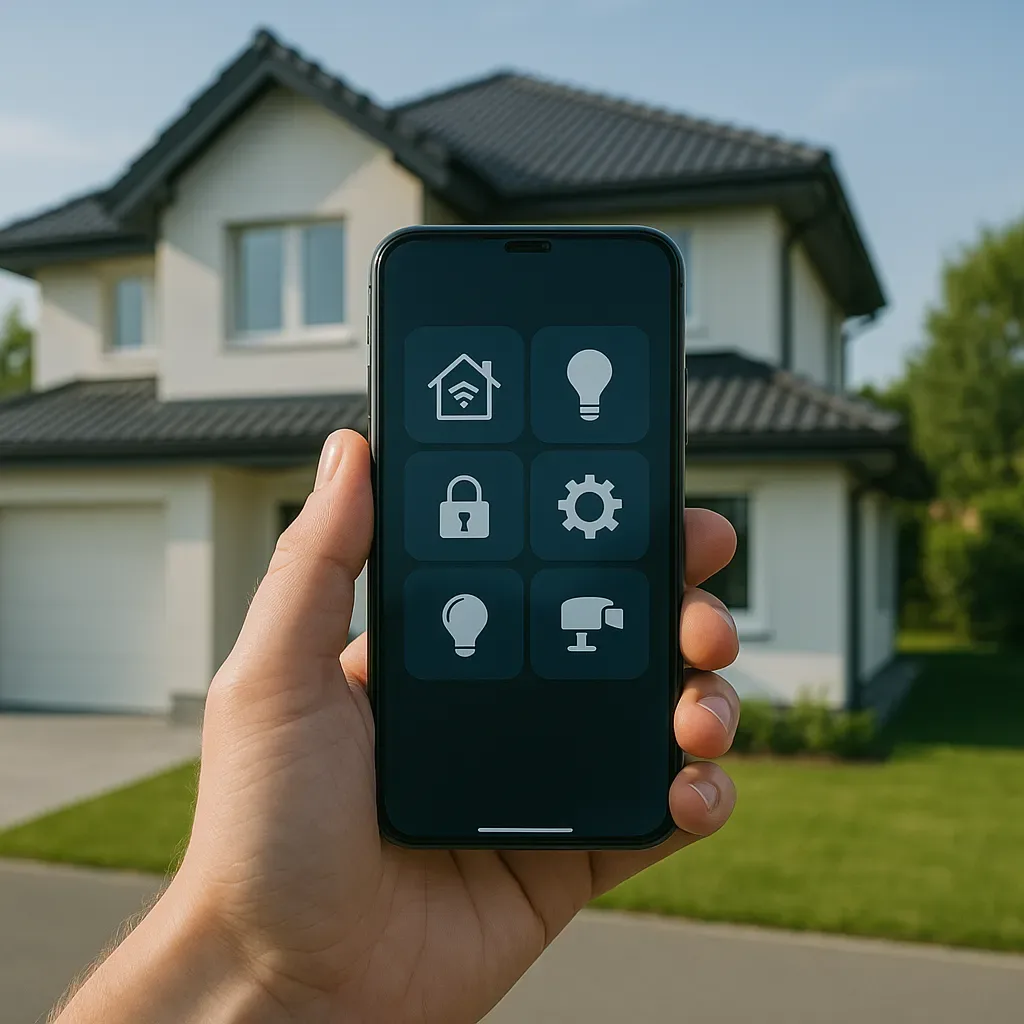
The Multi-App Problem
Most market smart home systems use separate apps for each brand — Philips Hue in one app, Aqara in another, Tado in a third, cameras in a fourth. The result: users juggle multiple apps, multiple logins, and no unified overview.
Recommended solution: Home Assistant Companion App — a single app unifying every system in the home, running on iOS and Android with Home Screen widget support.
Per-User Dashboard Design
Home Assistant supports multiple dashboards, with each user having their own view:
Tech-savvy Owner Dashboard
- Shows all entities, logs, energy monitor, automation toggles
- Mini Graph Cards for per-room temperature/humidity
- Glance Card showing all security sensor statuses
Non-Technical Parent Dashboard
- Large Mushroom Cards with clear colors and icons
- Only 3-4 sections: lights, AC, locks, cameras
- All advanced settings hidden
- Large red Emergency button visible immediately
Children’s Dashboard
- Shows only the child’s room: lamp, fan, music
- Picture Entity Cards with cartoon illustrations instead of switches
- Permission-restricted: cannot control security system or door locks
Offline Mode: Control Without Internet
This is Home Assistant’s key advantage over cloud-based systems:
Local Network Control: when on home Wi-Fi, the app connects directly to the HA server via local IP — no internet required. Works even when fiber is down.
Remote Access Options: for out-of-home access, use Nabu Casa ($6.50/month) or free Tailscale VPN for secure connection.
Physical Fallback: even if a phone dies, wall switches and voice assistants remain as fallback controls.
Smart Notifications: Alert Only When Necessary
A common problem: too many alerts cause users to disable notifications entirely. Solve this with priority tiers:
- Critical (always on): smoke, gas leak, water leak, front door open >5 minutes at night
- High (audible alert): unknown person rings doorbell, camera motion detection, sensor battery <10%
- Normal (silent banner): temperature exceeds threshold, high humidity, filter approaching end of life
- Low (summary only): daily energy digest, weekly system health report
Shortcuts and Widget Setup
iOS: Add HA Widget to Home Screen (iOS 16+) to see living room status instantly without opening the app. Set Siri Shortcut: ’I’m home’ → turn on lights + unlock door + start AC.
Android: Quick Tile in Notification Shade allows control directly from the top bar without unlocking the phone.
Summary: One App That Works for Everyone
Success comes not from having the most features, but from ease of use for every family member. Invest 2-3 hours designing separate dashboards for each member, configure notification priorities correctly, and run one training session for the household. The system then becomes a natural part of daily life.